Page 2 - A Closer Look - Hardware and Software

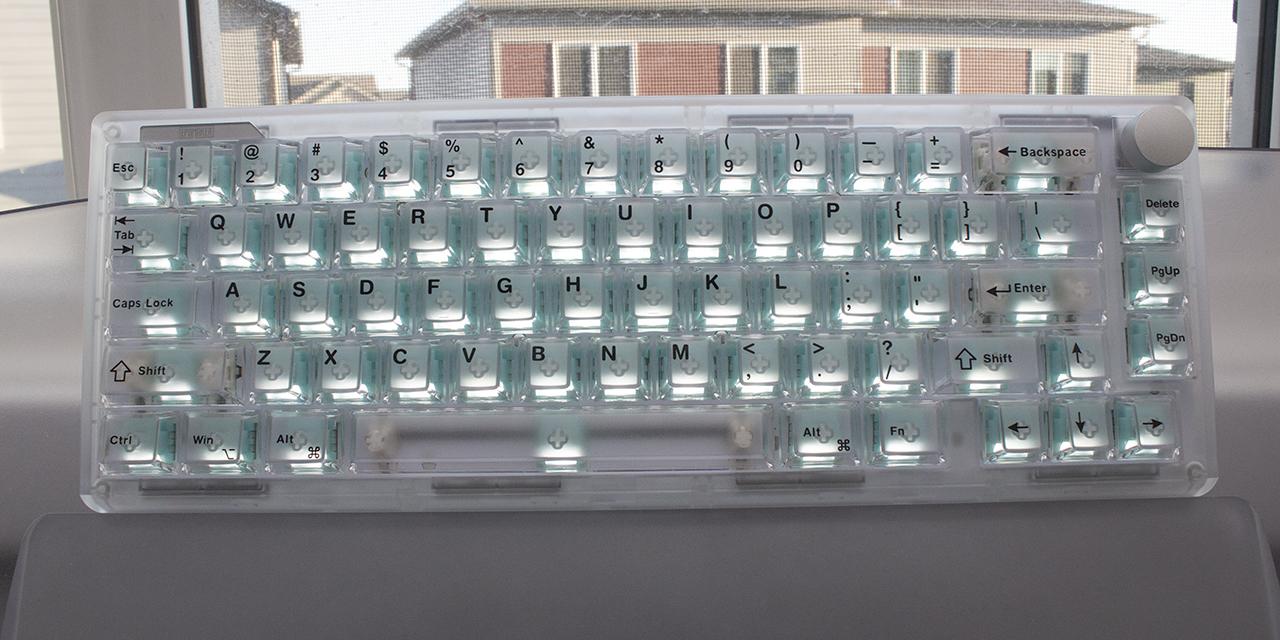
The Epomaker Magcore65 Lite is a standard 65% keyboard when it comes to appearance. It is important to note this keyboard only comes in the black color option. Black is a solid base color that works with many setups. Epomaker opted to use a plastic case with doubleshot PBT and PC keycaps, which has a consistent appearance across the board with a bit of accent. The keycap design fits well with the case, but I would have appreciated having extra keycaps to replace the Mac modifiers and orange Escape key. I personally prefer metal cases, but given Epomaker’s history, they tend to keep their Lite models simple and priced accordingly. The Magcore65 Lite features a standard high-bezel design, keeping the keycaps almost level with the frame of the keyboard. Epomaker chose not to place any branding on this keyboard, and I appreciate this minimal branding. The knob is very smooth to use and operates the volume as you may expect. For those unfamiliar with knobs on keyboards, manufacturers commonly use them as a volume dial. The Magcore65 Lite does have adjustable feet, meaning you can adjust the typing angle. I found no issue with typing on this keyboard, but your experience may vary.
The Epomaker Magcore65 Lite measures in at 323.7mm length, 117.7mm width, and 43.2mm height according to the product page. This is quite standard for a 65% design. The size makes sense given the layout. In terms of mass, it weighs in at 750g, not including the detachable cord. Given the size and the plastic build, everything makes sense. Going into the build quality, the top deck shows little flex when pushing between the small gaps of the keyboard, as you may expect from a smaller form factor. When pushing into the keys, there is surprisingly no flex in this “gasket” keyboard. This is due to the structure, but we will expand on that more on the next page. When trying to twist the keyboard, I found very little give. I was quite satisfied with the build quality, despite it being a plastic build.

The Epomaker Magcore65 Lite comes in a 65% QWERTY ANSI layout. The standard 65% layout typically has 66 to 68 keys, depending on whether or not we are using an exploded design or not. An exploded design means that sections of the keyboard will be sectioned out, having bezels between each section that make for a less cluttered appearance. The Magcore65 Lite has 66 keys instead, as there is an included knob. The ANSI layout is the standard American layout, which uses a single row Enter key, as seen in some of the earlier images. The keyboard does use a standard bottom row. For those who do not know, 1U stands for a single unit, meaning a 1.25U keycap is 1.25 times wider than a regular one. The left bottom row keys are 1.25U, but everything to the right of the space bar is 1U. For the average user, the typing experience will feel relatively the same, but they should be aware of the smaller right Shift and modifier keys.
The Epomaker Magcore65 Lite has full N-key rollover, meaning every single key pressed will register even if they are all pressed simultaneously. This means there will be no ghosting issues, where some keys may not be registered. Gamers and fast typists who have fast actions per minute or words per minute will benefit from this, as it will allow more keys to be recognized at the same time. In reality, people usually only need 6-key rollover, so the addition of N-key rollover is nice for extremely fast typists who can reach about 250 words per minute. The inclusion of N-key rollover has become quite standard among keyboards, so this should not come as a surprise the Magcore65 Lite has it as well.

Taking a look at the secondary functions on the F row, arrow, and a few extra keys, the user will have some memorizing to do. None of the secondary functions are labeled on the keycaps, thus the manual will be of use. These can be accessed by holding down the Fn key on the bottom right side before pressing the indicated key. We will break this down into shortcuts, other function key combinations, and lighting effects.
Taking a look at the general shortcuts, 1 and 2 will change the screen brightness. 3 opens the mail application, 4 opens the calculator, 5 accesses This PC, and 6 will open a media player. 7 through = will act as media keys starting from previous track, play/pause, next track, mute, volume down, and volume up, in that respective order. Next, we have the F keys, which can be accessed by holding down Fn and the Left Ctrl key with the top row key associated with each F key. This means that 1 will act as F1 with all the numbers acting in the same way, while 0, -, and = will act as F10, F11, and F12.
Moving on to other functions, Q, W, and E will change to three different Bluetooth connection options. R will swap to 2.4GHz connection. A and S will take care of swapping between Windows and Mac mode, in respective order. The B key will show the battery level on the top row. Holding the space bar will perform a reset on the keyboard. The Windows key will toggle Windows lock. To access the other homing keys, Del will act as Ins, PgUp as Home, and PgDn as End. Next, we have PrtSc, Scroll Lock, and Pause as I, O, and P in that respective order. Finally, Esc will act as the ` key.
Moving onto lighting, X will toggle on and off all the lights. \ will cycle through effects, while Enter will cycle through the colors. The up and down arrow keys will change the brightness, while left and right will control the speed.

As for the keycaps, these are made out of PBT plastic or polybutylene terephthalate, as previously mentioned. I personally prefer PBT, as the material is harder and resists shining better. The Epomaker Magcore65 Lite also uses PC for the Enter, backspace, and Esc key to accent the keyboard with a clear purple keycap. The PC is nice, but if you do not want to use it, there are extra PBT keycaps to replace them. The lettering is printed out on the top of the keycap using a doubleshot process, which is created by molding two pieces of plastic together. This helps preserve the legending, as the color goes all the way through. The font used is quite standard and consistent with the rest of the board, which is something I personally prefer. Doubleshot is slightly better in quality compared to dye-sublimation, so I am glad to see it here. The coloration and legending are sharp. Despite what some may say on the internet, these processes do not affect warping or shine, as those properties are mostly to do with the material of the keycaps. PBT is quite good in both of these aspects. Underneath the keycaps, you can see the typical MX stem. This means you can replace the keycaps with another set. This keyboard uses south-facing lights, which is good, as there will be no interference problems using Cherry profile keycaps. In regard to thickness, they are about 1.5mm thick, which is really good. The significance of the thickness of a keycap is important for the feel and pitch. To keep things simple, thicker ones have more depth and produce a deeper thock, while thinner ones produce a higher pitch sound.
The Epomaker Magcore65 Lite features the Epomaker Core switches. These switches are linear by nature, having a smooth travel from beginning to end. The Core switches have a key travel of 3.5mm. This is a slight alteration to the standard travel specifications for many mechanical switches opting for a shorter total travel. The total force required to actuate is roughly 30g. These switches have a rated lifespan of 80 million clicks, which is incredibly long. The Magcore65 Lite is also hot-swappable, meaning you can swap these at any time if they begin to fail. Something important to note is that this is an inductive keyboard, meaning it uses inductive analog switches and cannot be swapped to use a typical mechanical switch. The design of the switch is slightly altered, and I will expand on this on the next page.
Even with these specifications, it is quite hard to picture what these switches actually feel like, so I will try my best to explain. For a stock switch, the Epomaker Core switches are more than acceptable. The linear characteristic gives a very smooth travel, especially because they are pre-lubricated. If you have used a standard mechanical keyboard before, it will feel quite normal. With that said, the Core switches are good and are semblant to regular mechanical switches.
Moving on to stabilizers, we have plate-mount Cherry stabilizers. If you are unfamiliar, there are two main designs of stabilizers, which are Cherry and Costar. In both cases, these are used to maintain balance in the longer keys and stabilize them, as the name implies. Cherry ones will have stems matching the bottom of most keycaps, while Costar has a wire hooked into a hoop on the keycaps. The main issue with Costar stabilizers is how they are a rattly mess, and there is practically nothing you can do about it. Cherry stabilizers also rattle, but there are ways to reduce the sound, making it the superior choice.
There is also a large difference between plate mount and PCB mount stabilizers. Generally, there are three types of mounting method, including plate mounting, screw-in, and clip-in. The latter two are PCB-mounted. I personally prefer screw-in stabilizers, as they stay in place the best out of the three options, followed by clip-in. Given the keyboard’s design, plate mount stabilizers make a lot of sense, as they are the easiest to maintain and remove. The ease has a caveat that they can also easily fall out. With a small bit of knowledge, anyone should be able to fit them back into place rather easily. With that being said, the included stabilizers are tuned quite well with no apparent rattle.

Taking a peek at the bottom of the keyboard, we have four rubber feet. The feet on the bottom side are average in size, doing a great job of keeping the keyboard in place. There should be no noticeable unintentional sliding. There are adjustable feet on the bottom of the keyboard, being able to adjust the typing angle into three different options. There is no cable raceway to manage cables, as the Epomaker Magcore65 Lite uses a detachable cable design. This is my personal preference, as it makes swapping between keyboards easier. The included 1.8m USB Type-C cable is greatly appreciated. This cable is really quite nice, being braided. The quality is good, and a standard USB Type-C cable will work well for the Magcore65 Lite.
As for the battery, we have two 2000mAh batteries, which lasted me about a week with approximately 3 hours a day usage with the rainbow RGB LED effect on. Do note that your mileage may vary based on how active your keyboard usage is, as Epomaker has implemented an automatic sleep function, which will turn off all lights until any key is actuated. The implementation of automatic sleep is quite good, as I personally would not notice the keyboard go to sleep if it was not for the lights.

After doing my thorough inspection, I put the Epomaker Magcore65 Lite to use. As these Epomaker Core switches are linear in nature, I made sure to account for this in the typing test. My first observation was a nice and deep bottoming out sound with no ping. I should note I am typing on top of a desk mat, which dampens higher pitched sounds. However, the lack of pinging is more due to the dampening within the keyboard. Epomaker has provided a good amount of foam to prevent unwanted noise. The smooth linear feel was consistent throughout all the keys, which was nice. As someone who generally enjoys linear switches, I had a great experience, as these switches do not need to deal with the typical leaves in regular switches and are pre-lubricated. Something great about inductive switches is their ability to be customized when it comes to the actuation point. The travel distance was good, and I had no issues whatsoever. A sound test of the Epomaker Magcore65 Lite can be found above.
Now, you may be wondering what the difference between Hall Effect and inductive keyboards are, as they seem to be pretty much the same given what you can do with them. Hall Effect keyboards use magnets placed inside the switch stem and a sensor on the PCB to detect how far the key is pressed, measured through the strength of the magnetic field. To put simply, the electrons flow is disrupted by the magnet and the flow is affected, which can be measured to determine how deep the key press is. Inductive keyboards rely on the change in an electromagnetic field measured using a sensor on the PCB and a conductive element on the stem of the switch. The value being measured is called the inductance value. To put simply, an inductive coil sensor is used in the PCB, and a piece of metal is placed on the switch’s pole. When the switch is actuated, the metal dips in and out of the coil, affecting the coil’s magnetic field, which changes the coil’s inductance, and is measured to reflect how deep the key press is. In terms of performance, they accomplish the same thing very well with minimal difference. I will say, I personally prefer inductive keyboards, as given how they function, they should theoretically be more durable. As of right now, Hall Effect is more widely adopted, meaning there are more switch options to use. Inductive keyboards are still relatively new and will take time for adoption.

The Epomaker Magcore65 Lite definitely has good lighting effect potential. The lighting effects can be seen around the keys, as these keycaps do not shine through. Despite this fact, the backlighting effects are still nice to have. I personally found the lighting to be acceptable, as I had no issue with configuring it using software. If you really want the legends to be illuminated, you can swap the keycaps out, as we have standard MX stems. Nineteen different lighting variations can be toggled through by using the software I will talk about in a moment.

In terms of software, we have the Epomaker Magcore65 Lite Driver. While this is not VIA, this software is still quite impressive, as it is feature-rich in all the aspects you would want for the Epomaker Magcore65 Lite. Something I absolutely love about this software is it runs purely on a browser, making it incredibly accessible. Furthermore, you do not need to be wired in to make changes to the Magcore65 Lite, but a simple 2.4GHz connection will suffice. I really appreciate having software for the Magcore65 Lite, as I personally found the hardware key combinations to be confusing. From left to right, we have Key Mapping, Light Effect, Quick Trigger, Advanced Key, and Settings.
Key Mapping will allow you to adjust what each key will do, as you may expect. The changes that can be made range from basic key functions to multimedia, lighting effects, combined keys, and macros. You can load different configurations on this page, alongside all of the other pages.
Light Effect will allow you to adjust the backlighting on the keyboard. There are nineteen different lighting options, some are similar to others, but utilize the rainbow lighting effects rather than a single color. Colors can be adjusted on a color wheel, color code, or RGB values. Furthermore, the brightness and speed can also be adjusted on this page.
Quick Trigger is the main focus for the Epomaker Magcore65 Lite, as this is an inductive keyboard, meaning you can better optimize your switches to perform in a more specified manner. Much like Hall Effect keyboards, inductive keyboards have adjustable actuation distances and can use rapid trigger mode. To put simply, inductive keyboards sense the moment a key is pressed and released, leaving less delay between key inputs. This is useful in competitive gaming, particularly in FPS games where good strafing is essential. Rapid trigger can be adjusted for the Magcore65 Lite for both the up and down strokes in terms of sensitivity. Lastly, the Quick Trigger page will allow you to calibrate your switches.
Advanced key dives into the full potential of what an inductive keyboard can do, but in a lot of cases, it will not be used. The settings that can be adjusted here are Dynamic Keystroke (DKS), Mod Tap (MT), Multi-Purpose Tap (MPT), Simultaneous Opposite Cardinal Directions (SOCD), Toggle (TGL), and End/Release Action (END). I will break each of these down and try and explain a simple use case for each of them to paint a better picture of each feature's potential. DKS will allow the user to set up to four different actions for a single key based on how pressed the key is. A good use for this would be in gaming, where a light press can be used for walking, while a deeper press can be used to run. MT is similar in nature, allows you to have two functions on one key, where one is a tap and another is a hold. I personally find this feature is best for ergonomics in a way where you can rebind harder-to-reach keys or keys that do not exist on a smaller form factor keyboard onto an easier to reach key. MPT does the same thing as MT, but adds an additional layer, where a combination of keys can be used.
SOCD is a more competitive gaming-focused function that allows you to adjust priority between two keys. There are three main priorities, with them being neutral, last input, and first input. What this really means is when the keyboard is neutral, the keys will cancel each other out, but when the first or last input takes priority, they will be registered over the other. The use case for this would be strafing in gaming, where you do not want to stand still in between strafing left and right. TGL is much simpler compared to the other options, as it simply acts as a toggle for layers, rapid trigger, macros, and different modes. END is a more niche option, where pressing down the key will perform an action and releasing will perform another action. Technically speaking, you could use this to scope and aim on the press and fire on the release. The only reason I would not do this is because I do not enjoy binding firing to my keyboard, and I feel that many share the same sentiment.
Page Index
1. Introduction, Packaging, Specifications
2. A Closer Look - Hardware and Software
3. A Closer Look - Disassembly and Internals
4. Conclusion