Page 3 - Physical Look - Inside

To open the Cooler Master MasterFrame 360 Panorama, you only need your hands to pry off the panels. There are no screws to deal with, as all three tempered glass panels are held on with magnets and latches. These are held quite strong and you need a proper grip on the top edge of the side panel to pull it away from the case. The front panel slides forward and off the MasterFrame 360 Panorama. It is easier to remove the front if you take off the sides first. These panels are lined with foam to reduce vibration and prevent two hard surfaces from knocking about. All panels are 3mm thick tempered glass with a thick black rim on some of the edges so users can handle the panel without leaving visible fingerprints. There is a slight tint in the glass, but you should be able to easily see inside.

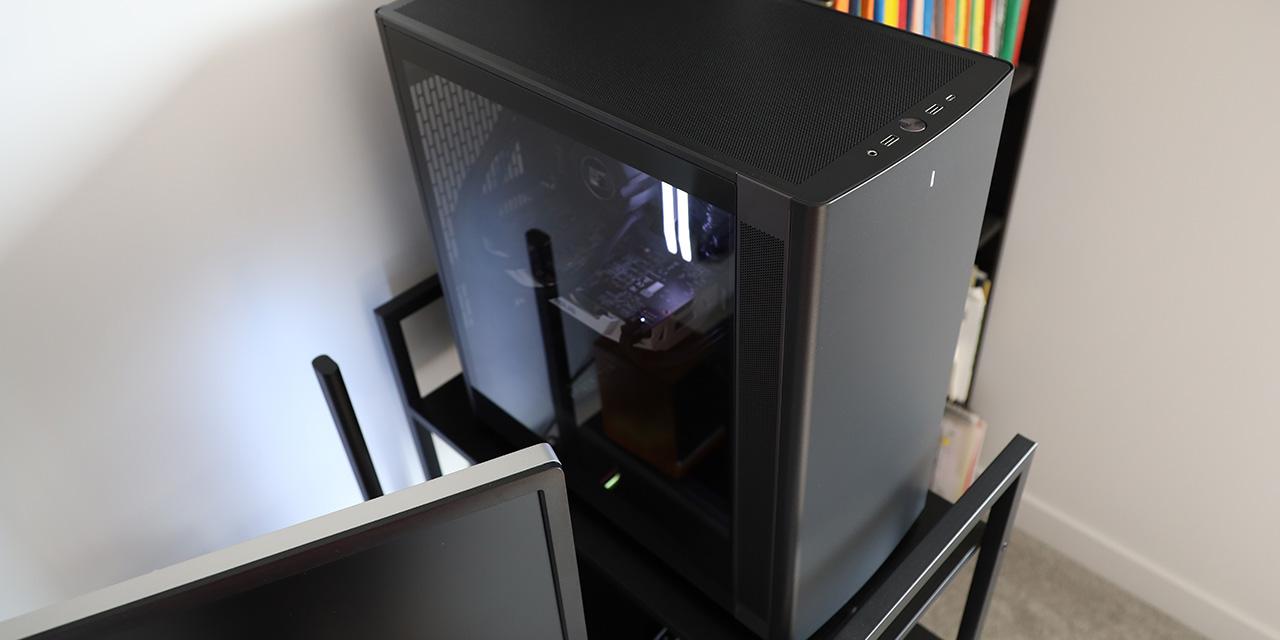
With the panels off, we have a better look at the Cooler Master MasterFrame 360 Panorama's interior layout. The first notable thing is a large accessible area at the front, which is divided off from the rest of the case. We will explore this area later. However, the primary parts of your system are installed behind this division. As you know, this is an open layout, but instead of using a front-to-back airflow, this is a chimney design with air expected to flow in from the bottom and out the top. As warm air is less dense and naturally rises, the airflow pattern makes sense. There are no perforations or ventilation spots at the front of the MasterFrame 360 Panorama. There are also no fans included with the MasterFrame 360 Panorama. This feels a bit strange given the premium nature of this case. The main area is where you will install your primary components like the motherboard, graphics cards, and processor. You can mount up to an extended ATX motherboard, with support for back-connected motherboards too. Everything in here is black. The paint is evenly applied and does not come off easily.

Inside, the first thing to see is the upper back corner. At the top, there are multiple rails for mounting fans as exhaust. The motherboard tray does not reach the top, as there is a large gap above the motherboard. This is not for routing cables, but to show the inner area is not fully divided in front and behind the motherboard. Instead, users can mount multiple fans at the top, including up to six 120mm or two 140mm, 180mm, or 200mm fans. To support these larger options, you will need to shuffle the rails around. Alternatively, you can install up to a single 360mm radiator. It is a bit strange you cannot install a 420mm option, even though there are many AIO options in this size. For radiators, Cooler Master specifies you should not install anything thicker than 75mm.
On the motherboard tray, there are many holes behind the motherboard, which are intended to support back connector motherboards. There are also holes at the top to connect necessary power cables. In the middle, there is a large cutout to ensure users have access to the back of the motherboard for installing a third-party backplate. Nearby, there is a cutout for the motherboard I/O plate. However, as we mentioned previously, there is no room to install a fan on the back.

Down the back panel, there is a total of three expansion slot covers in a vertical orientation. As the MasterFrame 360 Panorama is meant to be a showy case, you can only mount cards vertically. Cooler Master has provided a PCIe 5.0 cable for this purpose. The expansion slots are held on by standard screws rather than thumbscrews. At the bottom, there are another set of rails with ventilation holes underneath. Once again, we have same space and therefore you can install up to six 120mm fans or two 140mm, 180mm, or 200mm fans, assuming you rearrange the rails. Again, this bottom area maxes out at a single 360mm radiator with a maximum thickness of 75mm. Otherwise, there are more holes at the bottom of the motherboard tray for back connectors.

Nearer to the front of the Cooler Master MasterFrame 360 Panorama, there are a few areas to point out. The front metal panel has a neat mosaic pattern, and this is used to hide cables and storage options. It is held on with friction, which is why it came loose during shipping. Next, there are more holes to route cables through behind the motherboard. I wish they had grommets to better hide cables, but they are rounded off to prevent cables from catching on a sharp edge. Finally, we have a metal arm protruding out with a rubber pad on it. This is used to support the vertically mounted GPU and prevent it from sagging.

Before swinging to the back, we have the front area that is unique. I have seen many people place small figurines or display items directly in their computer tower for some personalization. However, I am a bit weary of doing so, especially since these items may shuffle around when you move the case. I also do not love the idea of putting unnecessary items near electric components. To resolve this, Cooler Master has divided up the case to give users a large staging area, where they can place and arrange their own items while ensuring any paraphernalia does not contact a component. Behind this stage, there is a large, mirrored panel to make this area flashier. There are two lights at the top on pivoting joints so users can angle the illumination accordingly. These are RGB LED lights and connect to your motherboard with standard addressable headers. Overall, this is an impressive addition, especially for those who might want to personalize their setup.

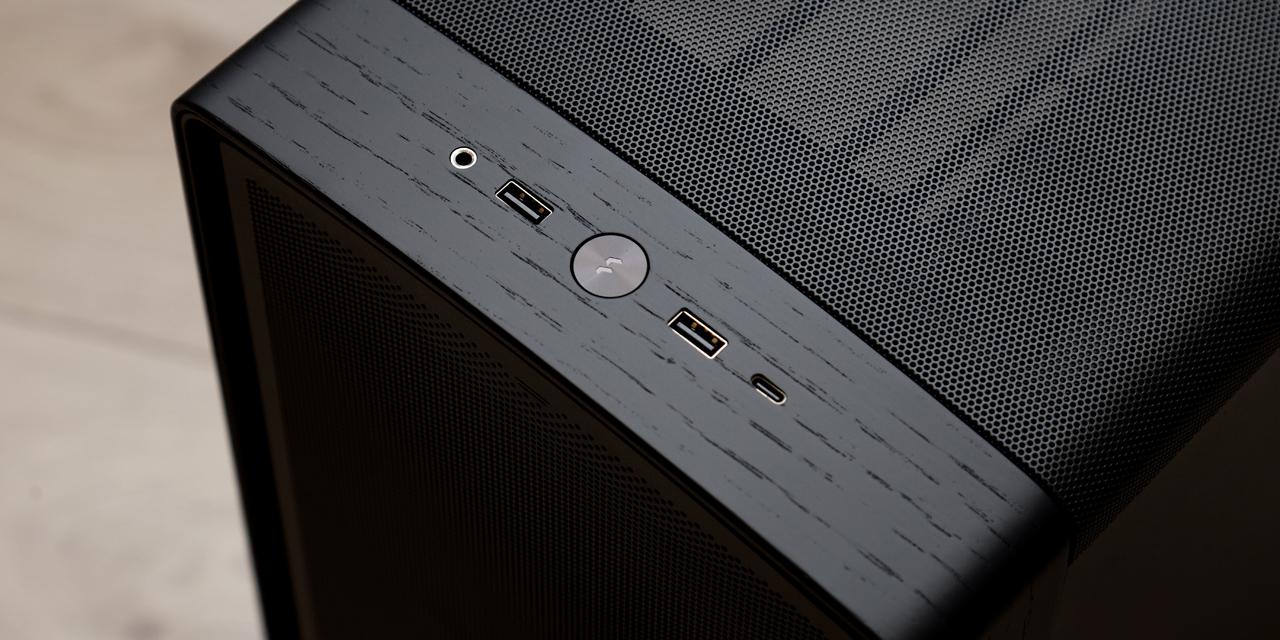
On the other side of the Cooler Master MasterFrame 360 Panorama, everything is hidden well behind more metal panels. This is understandable, given this side is exposed through the tempered glass. Removing the two metal panels involves loosening a total of seven screws. The left side needs to be removed first, and it hides the front I/O cables. There are connections for the USB 3.0, USB Type-C, front inputs and outputs, and HD audio headers. The cables are all black and blend well into the rest of the enclosure. Otherwise, you can also mount a single 3.5" drive or two 2.5" drives. This is not a large the most flexible, but most people are now using M.2 drives that install directly onto the motherboard. Otherwise, it is a bit finicky to get here, as you will need to remove some more panels at the back area, as you will see shortly. There is approximately 90mm in space for cable management in this area.
The right side is located right behind the motherboard and the primary component to install here is a power supply. This sits on its side, with an opening on the metal panel to ensure there is air for intake. There is a bit more metal support around the opening at the back, so the power supply is not floating freely. Behind the motherboard, there is approximately 110mm in space for routing cables.
Page Index
1. Introduction, Packaging, Specifications
2. Physical Look - Outside
3. Physical Look - Inside
4. Installation and Conclusion