Page 2 - A Closer Look - Hardware and Software

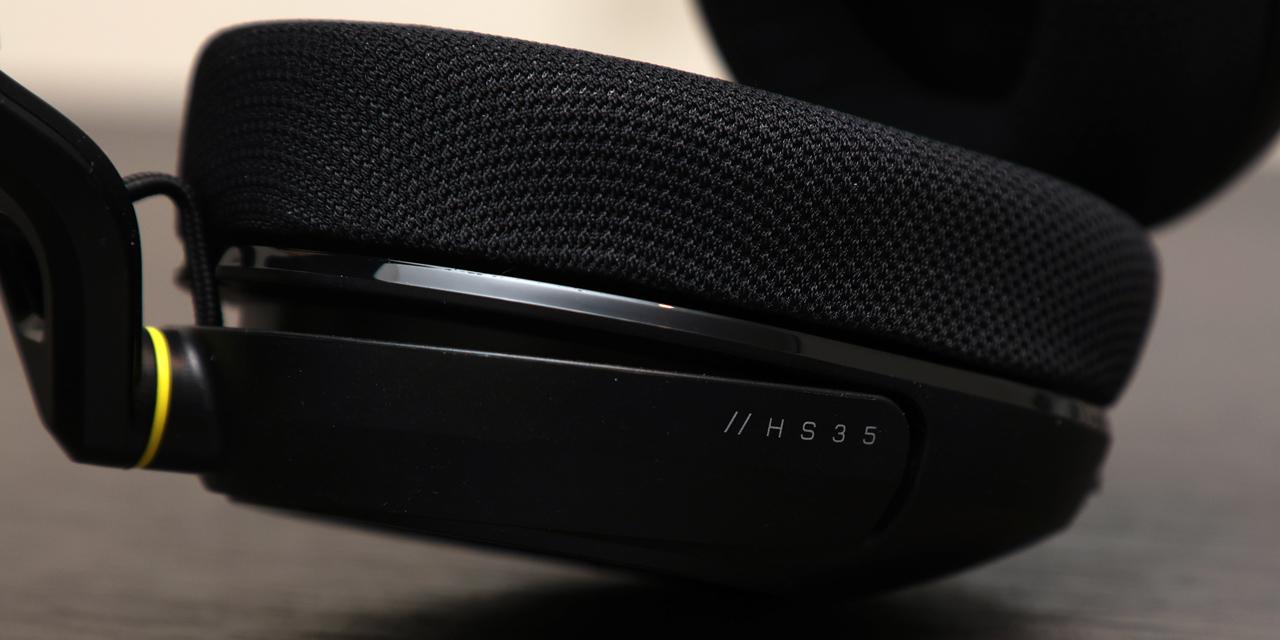
This is not the first HS35 we reviewed, as we looked at the Corsair HS35 Stereo back in 2019. Since then, there have been visual updates for the v3 Wireless. The most obvious difference is the color, as today's headset is much plainer with an almost all-black finish. In addition to this black Carbon color, the HS35 v3 Wireless is also available in white. There is a tiny splash of color with yellow rings right above the rotating earcups. The surface varies between matte and glossy finishes, with a Y-grid pattern on the sides of the ears for more personality. This Y-pattern is also seen on other Corsair products in various places. The company's sail logo is also found on the sides as well as their name on the top. The HS35 name is also printed on the back edge of the left side. Overall, the design is plain but functional, which is not too surprising for a headset in this price region.
The construction of the Corsair HS35 v3 Wireless is more than adequate. Even with the plastic build, it does not feel cheap. There are no creaking or cracking sounds when you pull or stretch the HS35 v3 Wireless. This material choice is not the most premium, especially when you get fingerprints on the glossy parts, but it is perfectly functional. Also, using plastic instead of metal ensures the weight stays at a maintainable level. In terms of materials, we have a plastic frame and shell everywhere, with fabric on the headband and the earpads, as well as memory foam underneath each ear.

Looking at the ear cups, you can see the Corsair HS35 v3 Wireless' padding here. This starts with a mesh-like fabric, which means you should have a breathable feel. Like many other headsets, we have memory foam inside each ear cup to maintain a comfortable fit. These fit around your ears with the cup covering your entire ear. The foam here is adequate and thick. In the opening hole, there is a thin mesh lining, which prevents your ears from making direct contact with the plastic of the headset underneath. The cups are easily separable from the rest of the ear so you can swap them out when need be.
Underneath the pads, there are 50mm neodymium drivers on each side. They have a frequency response of 20Hz to 20kHz, which covers the audible frequency spectrum for humans. Otherwise, we do not have any other specifications for the drivers here. Each ear sits on two flexible pivoting points, which means the ears of the Corsair HS35 v3 Wireless can tilt and rotate. The tilting motion is a bit stiffer than I would like, but considering the lack of movement here once the headset is on your head, this is acceptable. The rotation means you can rest the headset on your neck while laying the cups flat against your upper body.

At the top is the headband on the Corsair HS35 v3 Wireless. It is suspended and automatically adjusts to the size of your head when you put the headset around your ears. There is some give and elasticity on the band, making it stretch when you apply pressure. This sort of suspension will prevent users from feeling the top hard part of the headset and distribute the forces evenly across the entire area. The headband can be adjusted by changing the slot position. Each side has three slots, while the headphones have a plastic notch that insert in the slot. Changing the slot will affect the tension in the headband, which will be useful for varying head sizes. I have a big head, so I put the headband in the loosest position, which was big enough for my head.
In terms of overall comfort, the Corsair HS35 v3 Wireless is exceptionally comfortable to wear over extended periods. Its padded ear cups, memory foam, and suspended headband make for a light feel on your head. Furthermore, it is especially light at 242g with the microphone attached. The breathable fabric ears are also a positive aspect to me. You may have your own preferences between fabric and leather and leather alternatives, but I personally prefer fabric as it does not feel as stuffy or sweat inducing. This does come at the trade-off of sound isolation and leakage. Otherwise, the HS35 v3 Wireless has sufficient clamping force that balances properly between being enough to maintain on your head without feeling too tight. I can shake my head vigorously back and forth and the headset still stays on my head. Even so, this experience will vary from user to user, so I recommend trying out the Corsair HS35 v3 Wireless first before buying if possible.

All the controls on the Corsair HS35 v3 Wireless are found on the left side. The furthest back one is a volume rocker wheel that is used for changing the volume. A single press of the wheel will toggle the microphone mute on and off, while a long press will send the headphones into Bluetooth pairing mode. Next, there is a USB Type-C port for wired connection or charging. When connected, the LED nearby will glow red until it finishes charging, in which the light will turn off. It also turns green when it is powered on. There is a multi-function square button nearby, which is used to power on or off the HS35 v3 Wireless with a short two second hold. A single press will play and pause music, while a double press will toggle the headset between Bluetooth and wireless transceiver connection modes. Finally, there is a 3.5mm audio jack for connecting the boom arm microphone. This is an omnidirectional mic with a very flexible arm that stays in place once shaped.

Surprisingly, the Corsair HS35 v3 Wireless does not work with iCUE or any Corsair's proprietary software. This is understandable, given the fact there is nothing really to change with the headphones. Optionally, users can use Dolby Access, which is only available on Windows through the Microsoft Store. Once downloaded, Access will recognize the license that comes with the HS35 v3 Wireless. Under the Settings tab, users can select their different use cases, which will change the equalizer and virtual surround settings. Within each use, you will see a set of preset equalizer settings. You can audibly hear the difference between the different usage modes. You can also set three custom settings, which gives you ten frequencies levels from 32Hz to 16kHz to adjust. There are individual toggles to enable virtual surround and volume leveling. Dolby Access is straightforward to use, but it is not a necessity.
Page Index
1. Introduction, Packaging, Specifications
2. A Closer Look - Hardware and Software
3. Subjective Audio Analysis
4. Conclusion