Page 2 - A Closer Look - Hardware and Software

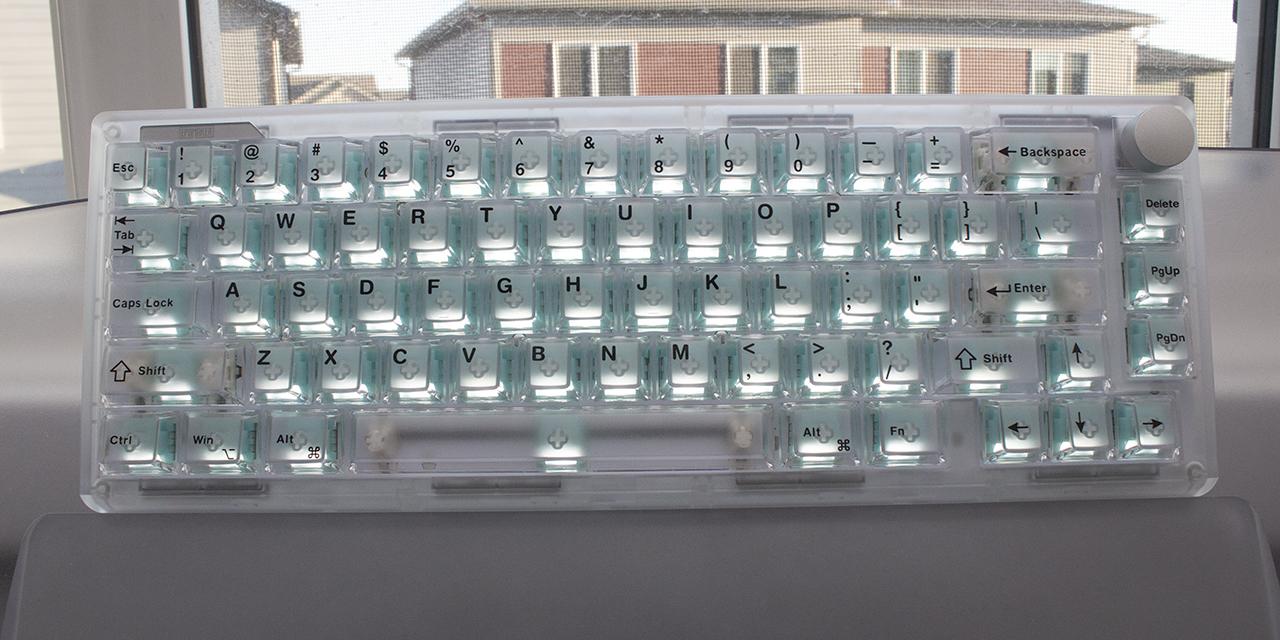
The Epomaker Luma100 has a 96% layout when it comes to appearance. The Luma100 only comes in one option, the silver frame with clear keycaps. In terms of the finish, we have a CNC aluminum case. Epomaker opted to use an aluminum case with ABS keycaps, which has a consistent appearance across the board. The keycap design fits well with the case, having gray legending on white keycaps matching the silver frame. The purple accent is nice, but if you prefer a more consistent white finish, there are extra keycaps to replace the accent keys. The Luma100 features a standard high-bezel design, keeping the keycaps almost level with the frame of the keyboard. Epomaker chose to place minimal branding on this keyboard, with it only the top left of the keyboard. I personally appreciate this as someone who likes minimal branding. The Luma100 does not come with a wrist rest, but does come with adjustable feet that can alter the typing angle.
The Epomaker Luma100 measures in at 371mm in length, 129mm in width, and 255mm in height on the back and 165mm on the front, according to Epomaker's manufacturer page. This size makes sense, given the layout. In terms of mass, this weighs in at 620g, not including the detachable cord. This may seem light for an aluminum keyboard, but when we consider how thin the keyboard is, everything makes sense. Going into the build quality, it is hard to complain given how it is an aluminum build. When pushing into the keys, there is surprisingly some flex provided from the gasket structure, despite being so thin. I did not have to try to bend the keyboard, as there was no possible way for me to bend this case with my bare hands. I was quite satisfied with the build quality, as aluminum is something I have been accustomed to, and am glad to see more keyboards moving in this direction.

The Epomaker Luma100 comes in a 96% layout. If you are unfamiliar with the layout, think about a squished down full-sized keyboard that removes a few keys that are typically the homing keys. Different 96% keyboards have slightly different designs, but for the Luma100, all the keys are cluttered together, leaving no gaps. The primary use case for this layout is for someone who does professional work and needs all their keys, but does not want the full length of a full-sized keyboard. I personally find this to be a niche, but useful, product, as I personally feel there is someone out there looking for this exact setup.
The Epomaker Luma100 has full N-key rollover, meaning every single key pressed will register even if they are all pressed simultaneously. This means there will be no ghosting issues, where some keys may not be registered. Gamers and fast typists who have fast actions per minute or words per minute will benefit from this, as it will allow more keys to be recognized at the same time. In reality, people usually only need 6-key rollover, so the addition of N-key rollover is nice for extremely fast typists who can reach about 250 words per minute. The inclusion of N-key rollover has become quite standard among keyboards, so this should not come as a surprise the Luma100 has it as well. I am not entirely who would be able to type fast on this keyboard, but I am sure there is someone in this world who can make use of N-key rollover on then Luma100.

The secondary functions can be accessed by holding down the Fn key between the right Alt and Ctrl keys before pressing the indicated key. We will start with regular key combinations then move to lighting controls.
Starting with the F-row, F1 through F5 will open applications such as Folder, Browser, Mail, Calculator, and Media Player in that respective order. F6 through F12 act as media keys. Stop, Previous Track, Play/Pause, and Next Track are binded to F6 through F9 in that respective order. F10 will mute and unmute the audio. F11 and F12 will control volume down and volume up.
Some more operational functions can be found on the alphas and some additional keys. The Esc key, if held down, will perform a reset to the keyboard. Q, W, and E will connect to Bluetooth devices 1, 2, and 3 respectively. R will connect to the included 2.4GHz dongle. To connect to Windows or Mac devices, you will need to use A and S, in that respective order. If you are curious what the current battery life is, you can use the space bar, and it will light up the number row and the top, indicating a relative percentage of battery life. Finally, the Windows key will act as Windows Lock/Unlock as typically found on keyboards nowadays.
For lighting, Backspace will toggle the lights on and off. Backslash changes the effects, while Enter changes the color. Home will change the color of the light strip. To control brightness, you can use the up and down arrow keys. Speed is controlled by the left and right arrow keys.

As for the keycaps, these are made out of ABS plastic or acrylonitrile butadiene styrene, as previously mentioned. I personally prefer PBT, as the material is harder and resists shining better, but ABS is a common choice. Epomaker opted to use an aluminum case with double-shot ABS keycaps, which has a consistent appearance across the board. The font used is quite sharp and consistent with the rest of the board, which is something I find nice. Underneath the keycaps, you can see the low profile MX stem. This means you can replace the keycaps with another set. This keyboard uses north-facing lights, which does not actually matter, as you will not be able to put Cherry keycaps on this keyboard. In regard to thickness, they are about 1.3mm thick, which is really good. The significance of the thickness of a keycap is important for the feel and pitch. To keep things simple, thicker ones have more depth and produce a deeper thock, while thinner ones produce a higher pitch sound.
The Epomaker Luma100 features the Epomaker Mint switches. These switches are linear by nature with a smooth travel from beginning to end. The Zebra switches have a travel of 3.2mm due to the lower profile. The total force required to actuate is roughly 50g for operating. These switches have a rated lifespan of 20 million keystrokes, which is quite long, but shorter than most switches. The Luma100 is also hot-swappable, meaning you can swap these at any time if they start failing.
Even with these specifications, it is quite hard to picture what these switches actually feel like, so I will try my best to explain. For a stock switch, the Epomaker Mint switches are acceptable. The switch is a bit rough for being a linear switch. If you have used a standard mechanical keyboard before, it will feel quite normal aside from it being a lower profile. With that said, the Mint switches are decent, but could be better.

Taking a peek at the bottom of the keyboard, we have four rubber feet surrounding a metal weight. The feet on the bottom side are average in size and keep the keyboard in place. There should be no noticeable unintentional sliding. There is no cable raceway to manage cables, as the Epomaker Luma100 uses a detachable cable design. This is my personal preference, as it makes swapping between keyboards easier. The included 1.8m braided USB Type-C cable is greatly appreciated. It is quite amazing that keyboards have progressed this far as in the past few years, as wireless aluminum frame keyboards used to have poor connection due to the metal causing interference. This is not the case for the Luma100, as the connectivity of the dongle is quite good, and I never experienced any delays. As for the battery, we have a 3000mAh battery, which should last for about a week of battery life with lights on. Do note that your mileage may vary based on how active your keyboard usage is, as Epomaker has implemented an automatic sleep function, which will turn off all lights until any key is actuated. The implementation of automatic sleep is quite good, but unlike many other Epomaker keyboards, I did notice it falling asleep, as it would not immediately respond upon waking up sometimes.

After doing my thorough inspection, I put the Epomaker Luma100 to use. As these Mint switches are linear in nature, I made sure to account for this in the typing test. My first observation was medium pitched bottoming out sound with no ping. I should note I am typing on top of a desk mat, which dampens higher pitched sounds. However, the lack of pinging is more due to the dampening within the keyboard. Epomaker has provided a good use of foam to prevent unwanted noise. The linear feel was consistent throughout all the keys, but it could be smoother. As someone who generally enjoys linear switches, I found the lower profile removes a significant portion of the travel, but some roughness was still noticeable. The travel distance and actuation point were both good, and I had no issues whatsoever. A sound test of the Epomaker Luma100 can be found above. I found the sound profile to be quite flat.

I would say the Epomaker Luma100 definitely has good lighting effects, as the white keycaps let the lights shine. The lighting effects are bright and vivid across the board. I had no issue with configuring it using software and I highly recommend doing so to maximize the functionality. I do not think any users will have any issues in regard to this. Forty-five different lighting variations can be toggled through by using the software I will talk about in a moment.

In terms of software, we have VIA, which is probably the best open-source keyboard software you could possibly use. I am personally a long time user of VIA, so I have become quite accustomed to its interface. For those who are not familiar with it, VIA has four primary tabs, being Configure, Key Tester, Design, and Settings. Note that you will have to upload a JSON file to configure your keyboard.
Starting with Configure, under the Keymap category, you are able to adjust what each key does to any particular setup you want and also adjust any secondary functions you might want to use. If you want to use a weird layout like Colemak, Dvorak, or Carpalx, you can go right ahead and do it. The Macros category will allow you to record macros as you may expect. Save + Load will allow you to save your current keyboard setup. This is useful, as I personally have experienced my keyboard resetting to its standard setup, so being able to reload all my settings is quite nice. Lastly, we have Lighting, which controls your keyboard backlighting. You can select a pattern and the color you wish to use.
Moving on, the Key Tester tab is a great place for diagnosis. I often find myself using this tab when building a keyboard, as it is good for testing your PCB as well as double checking if any of your switches have bent pins. Design is a tab you must use for the Luma100, as you will need to upload the correct JSON file for the Luma100 for VIA to recognize it. As of writing this review, I will say that the JSON file provided on the product page does not actually work, but the one I found in Epomaker's downloads page did. Do not worry about uploading the wrong JSON, as you can simply just upload another one.
Finally, we have the Settings tab where you will actually need to go to enable the Design tab. Aside from being able to enable the Design tab, you can also toggle Fast Key Mapping and Light Mode. Keycap Theme will just change the theme of VIA to a few popular keycap sets, while Render Mode will allow you to change between 2D and 3D rendering of your keyboard. You can also see Diagnostic Information, which most people probably will not use.
Page Index
1. Introduction, Packaging, Specifications
2. A Closer Look - Hardware and Software
3. A Closer Look - Disassembly and Internals
4. Conclusion