Page 2 - A Closer Look - Hardware and Software

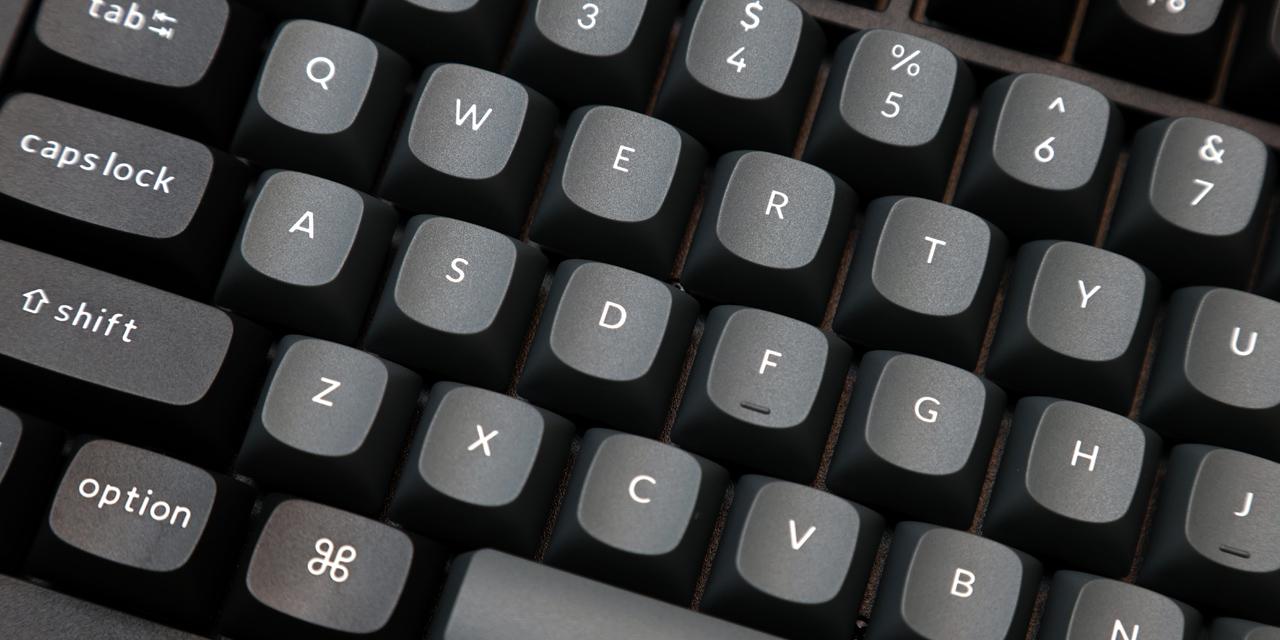
Our review unit of the Keychron K2 HE makes an immediate impression. The aluminum frame is paired with a natural rosewood side that gives the keyboard a clean aesthetic that stands out among other more typical gaming peripherals. The finish on the keycaps and aluminum feels almost soft and hides fingerprints extremely well. However, something to keep in mind here is fingerprints do naturally appear less visible on white surfaces, so the color of this version could have an outsized effect, but I cannot personally verify this. The bottom of the case is made from acrylonitrile butadiene styrene, or ABS, plastic. The wooden siding has a mostly smooth finish with a slight texture or grain. Something I really appreciate about the K2 HE is the restrained use of branding. I have mentioned in previous reviews that I do not enjoy in-your-face branding, and the Keychron K2 HE has very little, limited only to the regulatory label on the underside and the 2.4GHz receiver.
The Keychron K2 HE measures 320.5mm in length, 126.7mm in width, 30.1mm in height at the front, and 40.7mm in height at the back. With the kickstand fully extended, the back row of keycaps reaches approximately 55mm in height. According to Keychron, the keyboard weighs approximately 965g. In terms of build quality, the K2 HE is very sturdy, and I could only produce 1mm to 3mm of flex while applying torque to it. When I put downward pressure on it, the keyboard stayed sturdy and only gave up about a couple of millimeters. Pressing down on the keys required significant effort to produce any noticeable movement. Overall, this keyboard is sturdy enough to withstand any level of appropriate use or even some amount of abuse.

The Keychron K2 HE employs a 75% QWERTY ANSI layout with eighty-four keys. It retains the function row, arrow cluster, and a column of navigation keys to the right, while omitting the number pad and the wider key spacing found on larger form factors. The bottom row uses 1.25U keys to the left of the space bar, and 1U keys to the right.

The Keychron K2 HE has numerous secondary functions, accessible by holding the Fn key and pressing the corresponding key. These secondary functions include media playback controls, backlight settings, Bluetooth pairing, and firmware updates. Starting with the function row, F1 and F2 adjust screen brightness, F3 opens Task View, F4 opens File Explorer, and F5 and F6 decrease and increase the backlight brightness. F7 to F12 are concerned with media controls with functions for Previous, Play/Pause, Next, Mute, Volume Down, and Volume Up, respectively. To the right of F12 there are three additional keys set by default to launch the Snipping Tool, Delete, and toggle the backlight. Personally, I swapped the Delete key with the included Windows Lock Screen shortcut key. Remapping these keys was easy using the QMK firmware, which will be covered properly later in this review.
There are a few additional keyboard shortcuts to cover. Holding Fn + 1 to 3 will make the keyboard discoverable over Bluetooth and attempt to connect to one of three possible saved devices if it exists. Fn + Q will cycle through the many possible lighting effects, while Fn + Tab will turn the backlight on or off. Holding Fn + J + Z will factory reset the keyboard. Backlight strength can also be adjusted using Fn + W or Fn + S to increase or decrease the brightness. Different keyboard profiles can be cycled with Fn + P + Z , X, or C. All these shortcuts can also be changed using the QMK firmware and the Keychron launcher web app.

The base of the K2 HE is simple and functional, containing only the recessed area for the regulatory label mentioned earlier and the dual two-stage kickstands. The regulatory label displays the company name, product name, safety certifications, country of manufacture, and serial number. The K2 HE has four non-slip rubber pads on the base of the keyboard, with an additional pair for each stage of the kickstand. The kickstand allows for three different typing angles of 5°, 9.34°, and 12.43°. I personally ended up using the highest angle for most of my typing. The left side of the keyboard houses a USB Type-C port for charging or a wired connection, a toggle switch to choose between Windows and Android or Mac and iOS keyboard layouts, and a three-position slider to select between 2.4GHz wireless, wired, and Bluetooth connection modes.

The Keychron K2 HE’s layout is compact, efficient, and intuitive. Until trying this keyboard, I had only used exploded layouts before, so the first couple days I had more mistypes than I would like to admit. After typing and gaming for a few hours, I found the compact layout to be very enjoyable. One thing I appreciated was the clear yet uncluttered F-row, with the secondary functions neatly and intuitively labeled on the keycaps. I found myself using the connectivity slider a lot, as I have two machines, a laptop and a tablet, at my desk. Using the slider to switch between my main computer over the 2.4GHz receiver and my secondary over Bluetooth was extremely convenient and automatic. Having this option, as well as the multiple device Bluetooth pairing, freed up my desk and reduced three separate keyboards down to one.
The battery inside the K2 HE has a capacity of 4000mAh. On the manufacturer's page, the stated life is 110 hours with the backlight off. The expected battery life with the backlight enabled is not stated, but during my use, I was able to use the keyboard for just over five days on a full charge, with daily usage of 5 to 6 hours, although I did nothing to prevent the keyboard from sleeping. During these five days of use, the keyboard was connected to two devices over Bluetooth and its wireless 2.4GHz USB receiver. The backlight was set to the "Breathing" mode. This means that I was able to actively use the keyboard for approximately 28 hours.
As for the typing experience, I have enjoyed using the Keychron K2 HE. Across extended typing and gaming sessions, I have not experienced discomfort or encountered any ergonomic issues. The keystroke travel is smooth and consistent across all the keys, producing a dampened yet satisfying clacky sound. The larger keys sound slightly different with a somewhat deeper tone. The stabilized keys feel smooth and do not make any detectable rattle. Overall, I would describe the typing experience as satisfactory and enjoyable. As words often struggle to objectively describe sound, I have included a typing sample above.

The backlighting of the Keychron K2 HE features north-facing per-key RGB LEDs with over twenty-two preset modes, configurable through on-keyboard shortcuts or the Keychron launcher for more in-depth fine-tuning. The north-facing LED placement may require consideration regarding compatibility with other manufacturers' shine-through keycaps. As noted earlier, the Special Edition ships with non-shine-through OSA profile keycaps, while the Standard Edition ships with shine-through Cherry profile keycaps. The lighting around all the keys is evenly distributed, and I found the RGB LEDs to have a good range of colors and intensity, managing pastels as well as vivid colors. The backlight is sufficiently bright to look saturated during the day or in more direct light. The reactive backlight options feel responsive and move smoothly as well. Going over the on-keyboard lighting shortcuts again, Fn + Q allows you to cycle between many backlight effects. Fn + W and Fn + S adjust brightness, as do F6 and F5, and Fn + Tab toggles the backlight on and off.

In addition to the above shortcuts, Keychron offers Keychron Launcher, a browser-based web configurator accessible via any Chromium-based browser, with the keyboard connected in wired mode. The keyboard also supports VIA, offering an alternative configuration option for users already familiar with that ecosystem. Backlight customization within the Launcher is extensive, covering per-key RGB, a mix RGB mode that divides the keyboard into two independently configured groups, and dedicated control over the color of the Caps Lock indicator, in addition to everything accessible via the on-keyboard shortcuts.
Beyond lighting, the Keychron Launcher also includes further sections for the Hall effect features, keymapping, macros, a quick start tab, firmware and wireless firmware updates, a key tester, and a help center. There is also support for mice, but that is out of the scope of this review.

A significant feature of the Keychron K2 HE is the array of customization and features enabled by the Hall effect switches. This includes changing the actuation point and sensitivity, last keystroke prioritization, Snap Click, Dynamic Rapid Trigger, Dynamic Keystrokes or DKS, and Analog Mode. These features, when used together, can provide advantages in games that require precise or rapid inputs, such as quick tapping or multiple consecutive inputs. Analog mode allows for variable inputs rather than a binary on or off signal. This means that you can select keys to work like the accelerator or brake pedal of a car or more closely resemble the precision typically only associated with game controllers. One thing to keep in mind before using any of these features is that some games may not allow such inputs, and using them could result in a ban, so do your research before using them in games. Up to three different custom keyboard profiles can be saved and later swapped using Fn + P + Z, X, or C. The Keychron K2 HE is also VIA compatible, so if you are already familiar with that system, customizing this keyboard should come naturally to you.
Page Index
1. Introduction, Packaging, Specifications
2. A Closer Look - Hardware and Software
3. A Closer Look - Disassembly and Internals
4. Conclusion