Page 2 - A Closer Look - Hardware and Software

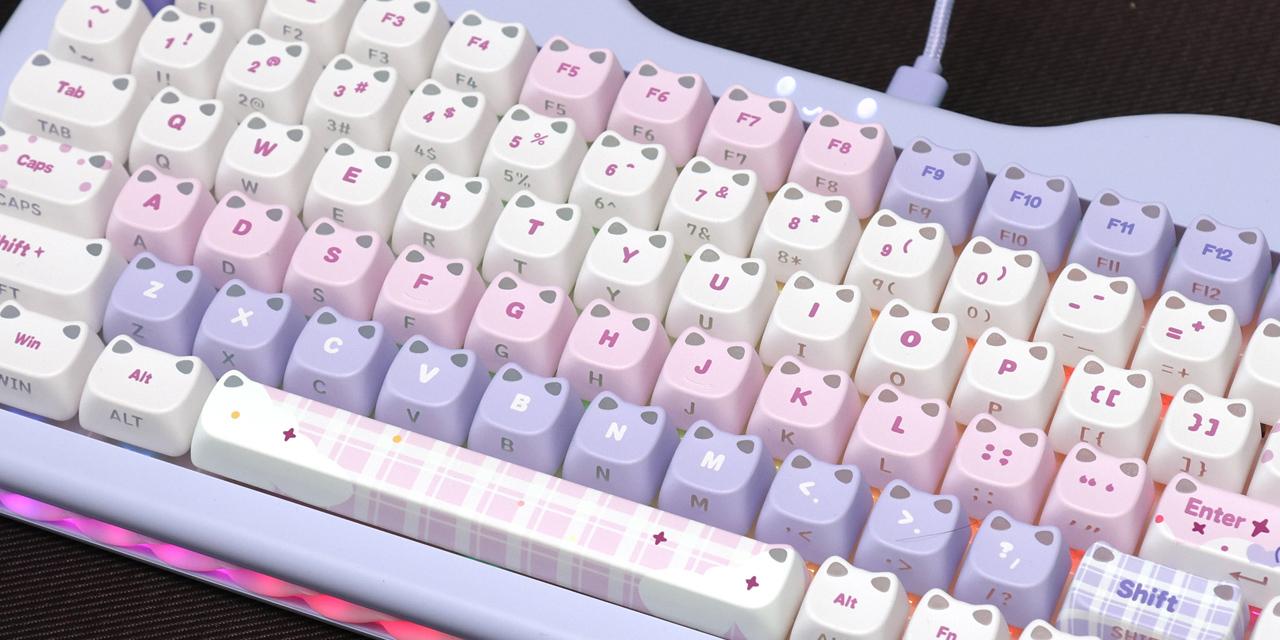
We have seen designs of keyboards from everyone and everywhere, but I think the YUNZII C75 MAO Cake Kitten truly takes the cake, no pun intended, for one of the most outlandish designs. As you can tell by its name, this is designed as a cat-themed cake. As such, the plastic frame and structure is shaped like a cat with two ears at the top and an illuminated cat face at the top. The cake is seen with the side frame parts, as there is a translucent rubber to emulate a cream-like layer in between the purple top and bottom. The plastic parts are rounded off to keep with the cute exterior. On an aside, you might be wondering why YUNZII sells two C75 variants, with one being our MAO Cake Kitten and the other called Cake Meow. While its structure looks very similar, the main difference with our version today is the use of cat head-shaped keycaps, as each key has a pair of triangular cat ears on the top corners. Some of the keys also have various sprinkles or plaid backgrounds, and the Enter key has a small cat resting on a cloud. There are a few other cat elements around the keyboard, but we will explore them later. YUNZII has not shied away from more unique designs in the past as we have seen with their B87, but this one is unlike anything we have seen before. Overall, I love the commitment and execution to their theme. It may not be for everyone, but it is a clear direction with no compromises.
In dimensions, the YUNZII C75 MAO Cake Kitten is 336mm wide, 162mm deep, and 41mm tall at the back, not including the keycaps. This height does not change, as there is no conventional kickstand underneath. This is otherwise a slightly larger size for a 75% keyboard. In terms of weight, the YUNZII C75 MAO Cake Kitten weighs 969g, including the USB receiver. This is a bit light for its size, but understandable given its construction. Under pressure, the YUNZII C75 MAO Cake Kitten does flex a bit in both the body when you twist it and its deck. This is notable in the middle of the keyboard. However, this is also understandable given the gasket-mounted polycarbonate plate inside, and it contributes to the typing feel. The front of the keyboard is approximately 20mm tall, so you can match this with a palm rest, but I am not sure you want to cover up the cake layers at the front edge.

The YUNZII C75 MAO Cake Kitten is a 75% keyboard, and we have a standard North American QWERTY ANSI layout. This translates to eighty-four keys. YUNZII also offers a 96% version of this keyboard in the C98 MAO Cake Kitten. The bottom row is standard for a 75% layout. This means there are three 1.25U keys on the left side of the space bar, a 6.25U space bar, and 1U keys on the right side. There are three right modifier keys with an arrow key cluster squished into this area. The right Shift key is also reduced to 1.75U size. Keys that are normally above the arrow keys are instead a column on the right, with only the Insert key missing. The Print Screen and Pause keys are located above the backspace, with the function row all in the same line and squished together. The one other modification to point out is a small cut-out beside the Caps Lock key, which is a white indicator LED to show when Caps Lock is active.
Secondary functions are plenty with the YUNZII C75 MAO Cake Kitten. These can be activated by pressing Fn, followed by the respective keys, but they are not marked on the keycap themselves. F1 to F5 are used to open default applications for your file explorer, web browser, email, calculator, and media player. F6 to F9 are media keys for Stop, Previous Track, Play/Pause, and Next Track. Finally, F10 to F12 are for Mute, Volume Down, and Volume Up. These are the shortcuts for Windows. On Mac layout, F1 and F2 decrease and increase screen brightness, F3 is for Mission Control, and F4 is for Launchpad. F5 and F6 are not assigned.

Other shortcuts include Fn and left Windows key to toggle locking this key, which is helpful for gaming. When locked, the backlight under the Windows key glows white. Fn + 1 to 3 are used for pairing up three different devices over Bluetooth. Fn + 4 in 2.4GHz mode is used to force a pair with the USB dongle. You can check your battery with Fn + right Ctrl, and this will illuminate the number row to the battery percentage, up to the nearest ten percent. Changing the keyboard layout from Windows to Mac is a matter of pressing down Fn + A for Windows and S for Mac. It is a bit annoying that the layout can be changed so easily, as I accidentally did so more than once while just handling the keyboard, and I would have preferred a switch at the back. Doing this will swap the modifier keys on the bottom row to the respective Mac functions as well as the function row. Finally, if you make any changes you want to reset, you can press and hold Fn + space until the backlight of the keyboard blinks three times. The rest of the secondary functions are used to change the lighting under the keys, the smiley light, and the side lights.

The bottom of the YUNZII C75 MAO Cake Kitten shows the same cake cat theme in multiple ways. For one, the color matching continues at the bottom. In the middle, there is a large rubber cat tail. The corners have rubber pads to keep the keyboard in place with the back ones in the form of purple paws, while the front corners are curved rubber pieces. This means that the keyboard is not height adjustable. YUNZII has also hidden the USB transceiver under the right paw. This dongle is in the shape of half of a fish, which looks especially cute when you plug it into your computer. On the other hand, it takes up more space near your port because of this rubber sleeve.

From the image above, you can see the layers in between the top and bottom plastic shell with the translucent rubber layer that is styled to look like a custard cream. At the back, there is a USB Type-C port for wired connection or charging the YUNZII C75 MAO Cake Kitten. There is a purple switch nearby to change between the connection modes. In the middle is for wired, while one side is for Bluetooth, and the opposite side is for connecting with the wireless USB connector.
Inside, the YUNZII C75 MAO Cake Kitten has a 5500mAh capacity battery to keep everything working without a cable. In our testing, we had decent battery life results. YUNZII provides an estimate of seven days of use with the RGB lighting fully on and twenty-five days with the lighting turned off. The C75 MAO Cake Kitten lasted around nine days or about 33 hours of actual duration with the backlights on full brightness before it needed a recharge. To keep this longevity, the C75 MAO Cake Kitten lights automatically turn off after a minute and automatically sleeps after five minutes. Once you press a key, the keyboard will wake back up. This sleep time is configurable in their utility, but the lighting timeout is not.

Over the gray XTracGear Carbonic XXL, the YUNZII C75 MAO Cake Kitten stands out with its light purple finish that is just not seen in most peripherals. Personally speaking, I have used 75% keyboards, but I prefer tenkeyless or 80% options. I do not love the placement of the Delete key in the far corner, but at least it is easy to landmark after using this for some time. I also miss having a dedicated volume knob, which could have been installed on one of the cat ears at the top. Some may find the shorter right Shift or closer placement of the right Ctrl tricky to get used to, especially if you have common shortcuts using these modifiers.
In typing feel, the YUNZII C75 MAO Cake Kitten is very enjoyable to type on. This comes with their Candy Linear switch. The result is a combined high-pitched clack with a deeper sound to provide a marble-like sound. There is some substance or depth so that it sounds fuller. This is purely a preference, so I would recommend listening to the recording above and trying out the keyboard, if possible. Bottoming out the switch feels sturdy. These are linear switches and do not have a squishy bottoming out, which is good. The longer, stabilized keys, such as the space bar and Shift keys, are smooth but sound different. Their larger body means you have a hollower sound. Even so, they move smoothly and do not squeak or produce other adverse sounds.

The three lighting areas of the YUNZII C75 MAO Cake Kitten are interestingly used in the design of the whole unit. First, the LED backlighting under the keys is vibrant and bright. The PBT keycaps offer shine-through with the front-facing legends, which means the lights provide a function to illuminate the keys. They also brighten up the small cat ears on each keycap. These south-facing lights make the gaps and areas between keys even more visible. At maximum brightness, the lights are clear and easy to see, even in a fully lit room. Similarly, the lights surrounding the C75 MAO Cake Kitten's sides are equally bright and vibrant. The only lighting area that is not as bright is the top cat face. However, it does serve a functional purpose to indicate charging and low battery. When it is charging, this face will glow red for a period before returning to its preset effect. Once it is fully charged, the face glows green for a moment. When the keyboard is low on battery, the face will flash red.
In terms of lighting controls with secondary functions, there are many given there are many lighting areas. All three zones are controlled independently of each other, although you can change all the lights to white with a single secondary function of Fn + Tab. Other adjustments you can make for each zone include the effect, color, brightness, and movement speed. You can find all these secondary functions listed in the quick start guide. My only suggestion would be to add a way to turn off all lighting all at once, but it is not a big deal.

The YUNZII C75 MAO Cake Kitten can be configured with YUNZII's online utility or their downloadable software. I personally like the online utilities more as you do not need to install a piece of software. You do need a Chromium-based web browser for this. Otherwise, YUNZII also recommends plugging in your keyboard with a cable to make changes with the software. I noticed whenever I connected over wireless, it seemed to work, but it also always changed my layout to Mac mode. YUNZII should fix this to allow wireless use without any side-effects.
There are five pages for the YUNZII C75 MAO Cake Kitten. The first page is used to make primary changes including language of the menu, sleep timer, resetting the device to factory settings, and clearing the utility data. Unfortunately, we cannot modify the timeout of the lights in the utility. The next menu is Key Assignment, which is where you can re-assign functions and secondary functions for each key, for both the Windows and Mac layout. The third menu is to set lighting effects, although this only applies to the backlights and not the side or smiley lights. There are many static and dynamic effects as well as a custom mode. The fourth menu is to create and save macros, while the last one is a device picker in case you have multiple YUNZII products to make changes to. Overall, the utility is basic but looks unrefined and feels a bit clunky to use.
Page Index
1. Introduction, Packaging, Specifications
2. A Closer Look - Hardware and Software
3. A Closer Look - Disassembly and Internals
4. Conclusion