Page 2 - A Closer Look - Hardware and Software

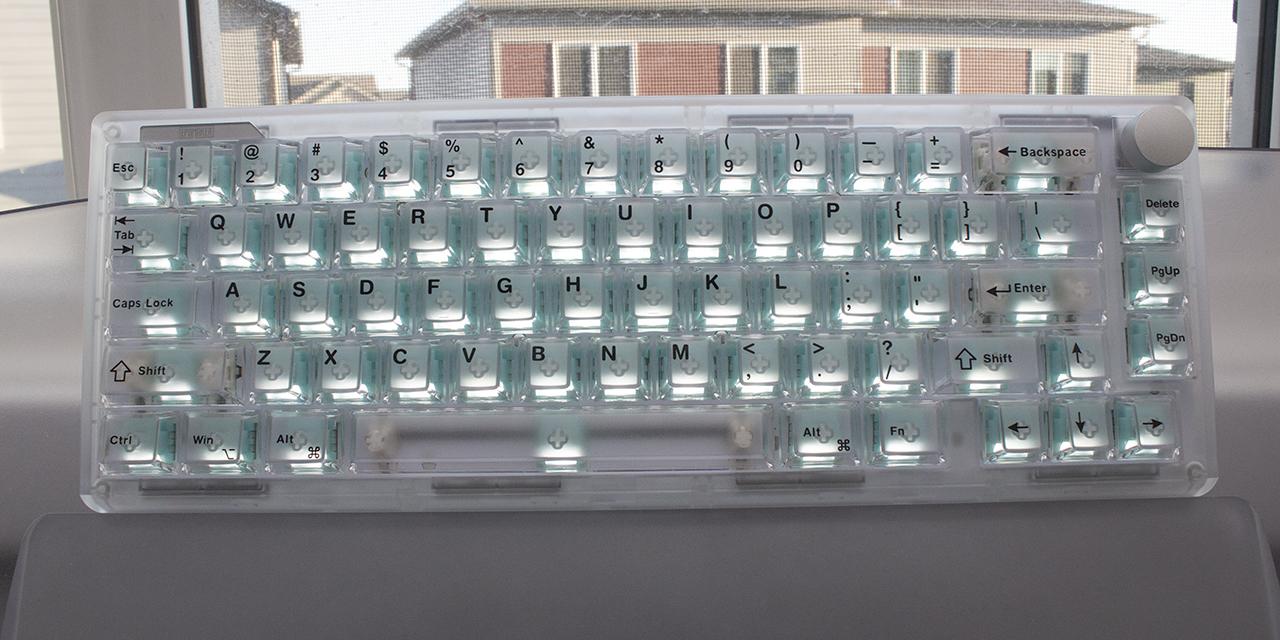
After using the Epomaker RT82 for several weeks, I have gained an appreciation for the keyboard and its features. The Retro White colorway is a simple but well-executed design, coincidentally publishing in the same week as the retro-inspired SilverStone FLP02 computer case. The combination of off-white and light gray keycaps emphasizes the south-facing RGB LED lighting, while the space bar, Enter key, and Escape key accent the color scheme in green, blue, and red, respectively. For this keyboard, Epomaker has chosen a solid-color ABS plastic case paired with dye-sublimated PBT keycaps. In my opinion, the colors chosen for the case and keycaps mesh to create a cohesive aesthetic. The keycaps on the RT82 feature a standard high-bezel design with a Cherry profile. The dual two-stage kickstands feel sturdy and click firmly into place, and I have not encountered any issues with sliding during my time with this keyboard. Branding on the RT82 is minimal, consisting only of a small badge on the rear of the mini display and printed branding on the wireless receiver. I appreciate the very subtle branding, since I typically do not find myself forgetting which brands I use.
The novelty feature of the RT82 is, of course, the detachable mini display. The display clicks into place using magnets to ensure proper contact and turns on without any further hassle. The LCD screen is plastic and therefore more susceptible to damage than glass, a consideration that should be made before purchase. The mini display has three available modes, including Home, which shows basic system information such as time, connection type, and Caps Lock status; DIY pictures or GIFs; and Typewriter mode, which displays the most recent input.
The Epomaker RT82 measures 326.7mm in length, 143.2mm in width, and 39.8mm in height, which falls within the typical range expected of a 75% keyboard. The RT82 weighs approximately 0.86kg. When holding or moving the keyboard, the weight felt well balanced -- not light enough to feel cheap, but not so heavy as to be cumbersome or unwieldy. The keyboard does exhibit some flex when significant force is applied to the frame, but not enough to be noticeable during typing or daily use. If excessive force is applied by twisting the case, some flex is noticeable, but there is no deformation or warping of the material. Similarly, aggressive key presses can induce mild flex, although this never occurred during normal use. Overall, the build quality of the RT82 was satisfactory and left me without complaints.

The Epomaker RT82 comes in a 75% QWERTY ANSI layout, with 80 keys on this model. The exploded layout separates sections of the keyboard with bezels, which I personally prefer, as it reduces accidental key presses while also contributing to a less cluttered appearance. The keyboard uses the ANSI layout with a single row Enter key. The Epomaker RT82 supports full N-key rollover, meaning there is no limit to how many simultaneous inputs the keyboard can register. This eliminates the risk of ghosting, where pressed keys may fail to register. For applications such as gaming or fast typing, this feature is particularly beneficial. Including N-key rollover has become fairly common practice in mechanical keyboards, so it is appreciated that the Epomaker RT82 has it as well.

Looking closer at the top row of the RT82, it quickly becomes apparent that a brief check of the manual will be needed, as the F row keycaps do not come labeled with secondary functions. These functions are clearly documented on the manual’s first page and can be accessed by holding the Fn key while pressing the corresponding function key. F1 is assigned to This PC, while F2 opens Windows Explorer. F3 through F5 are assigned to the operating system’s default Calculator, Mail, and Media Player applications, respectively.
F6 through F12 control multimedia functions in the following order: Stop, Previous Track, Play/Pause, Next Track, Mute, Volume Down, and Volume Up. One thing to note is that due to the exploded layout, media controls are separated by a bezel between F8 and F9, which may be undesirable for some users. Additional Fn key shortcuts include Insert on Delete, End on Home, and Print Screen mapped to the I key. The Windows key can be locked or unlocked to prevent accidental interruptions during gaming or other tasks. O activates Scroll Lock, while P is assigned to Pause. Other notable Fn key combinations manage the RT82 directly. Holding the space bar for three seconds will reset the keyboard, while A and S will switch into Windows or Mac mode, respectively. Pressing and holding Q, W, or E will start a Bluetooth pairing attempt with one of three saved Bluetooth-capable devices when the RT82 is in Bluetooth mode. Pressing R controls the 2.4GHz mode.
Next, we have a few Fn key combinations that directly control the mini display and backlight included with the RT82. The X key can be used to turn the screen on or off, and pressing C will reset it if it has been removed and reattached. The Enter key will toggle the screen display mode, and the right Shift key serves to cycle through the three custom animations that can be loaded onto the display in the DIY display mode. Last but not least, there are keys assigned to controlling the lighting effects. Backspace will turn the lighting effects on/off, while the Backslash key will toggle the lighting effects. For brightness control, we can use the vertical arrow keys, while the horizontal arrows control the speed of the lighting effect. The bracket keys can be used to adjust the hue of the backlight, while the semicolon and quote keys adjust the saturation.

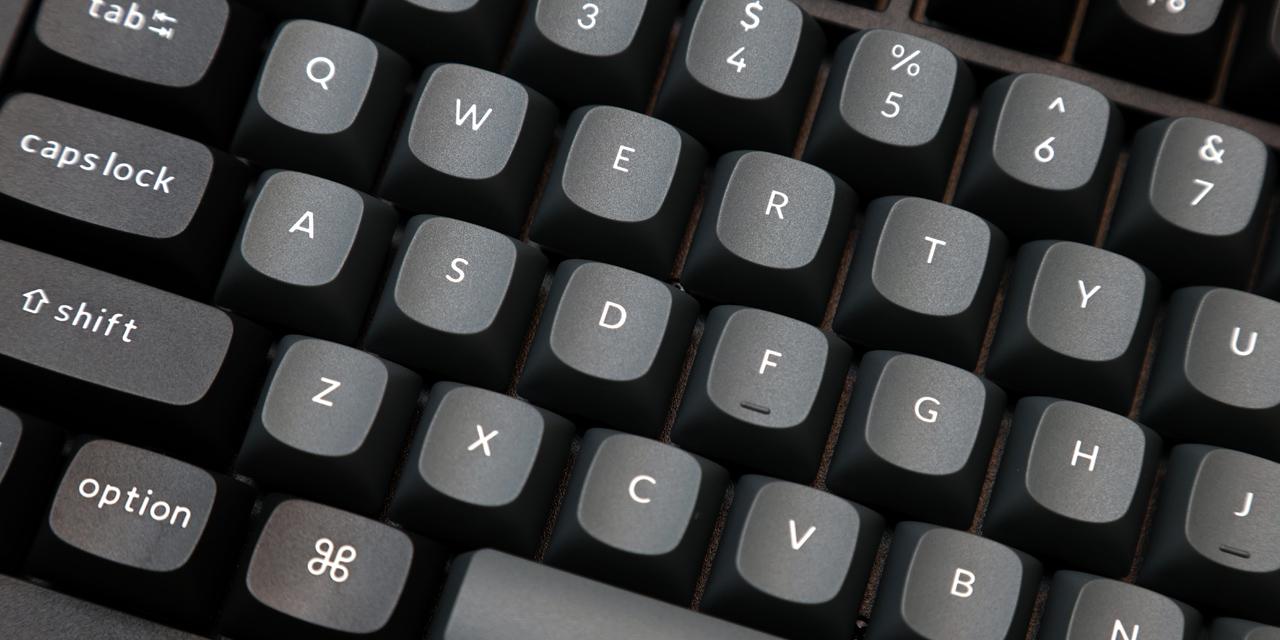
The keycaps of the Epomaker RT82 are formed from PBT, or polybutylene terephthalate, with the lettering applied using the dye-sub method, where heat and pressure are used to sublimate dye and apply characters directly to the keycap. The printing on the keycaps of the Epomaker RT82 is consistent and legible, with the black contrasting nicely with the matte lighter colored keycaps.
The Escape and Enter keys use white legends to maintain visibility against their darker accent colors. The keycaps are a respectable 1.5mm thick, ensuring that they produce a richer thock with a greater depth of sound.
Underneath the keycaps, you will find standard MX-style stems, allowing for easy keycap swapping if a different set is desired. The Epomaker RT82 ships with one of two switch types, Epomaker Creamy Jade or Epomaker Sea Salt Silent. Our particular unit is equipped with the Creamy Jade switches. These 5-pin mechanical switches are linear and pre-lubed, providing smooth travel from start to end when pressed. These switches do not possess a light diffuser. The switches have a pre-travel of 2.0±0.4mm, with a total travel measuring 3.6±0.4mm. Actuation force measures in at 45±5gf, with a bottom-out force of 50±5gf. This is fairly standard for linear switches and provides a balanced, intentional typing experience. The RT82 is also hot-swappable, so switch replacement is easy should any fail.
The RT82 uses Cherry-style plate-mounted stabilizers for longer keys such as the space bar and Enter key. These stabilizers are well installed and do not exhibit any rattle. The keycaps have a very slight wobble, but not to the extent that it becomes noticeable during use. The decision to plate-mount the stabilizers means that they will be easier to maintain and remove, but they are also more prone to falling out or loosening than their screw-in and clip-in alternatives, which are mounted to the PCB itself. The stabilizers that came installed in the RT82 are well-fitted and do not appear to rattle.

The RT82 comes equipped with four rubber feet that ensure the keyboard does not slide easily, and both stages of the kickstand feet have non-slip pads as well. I found these pads to have excellent grip on my desk, both with the kickstand and without.
For connectivity, the RT82 offers three methods, including Bluetooth, 2.4GHz wireless receiver, and a 6-foot USB Type-A to USB Type-C cable. The RT82 has a slider on the back left rear that can be used to select which method of connection you wish to use. While reviewing this keyboard, I have used all three options, and found all of them to work without hassle. The wired connection offers the lowest latency at 3ms with a 1000Hz polling rate, while the 2.4GHz wireless mode provides similar performance with a slight increase to 5ms. Bluetooth is limited to 125Hz and 15ms of latency, but remains reliable across tested devices. The 2.4GHz wireless receiver is the middle choice of the three, and personally the one I found the most convenient. The receiver still offers a connection with the same 1000Hz as the wired alternative, but with slightly increased latency at 5ms. Finally, the Bluetooth connection is the weakest option, with only 125Hz polling rate and a much higher 15ms of latency.
The Epomaker RT82 comes equipped with a 4000mAh rechargeable battery. Epomaker states the battery life is rated at 14 hours with both the RGB LED lighting and screen enabled, 17 hours with RGB LED lighting on and the screen off, 45 hours with RGB LED lighting off and the screen on, and up to 115 hours with both RGB LED lighting and the screen disabled. These estimates seem reasonable, but your mileage may vary. During my time with the RT82, I have been using it 2 to 4 hours per day, and I did not experience any issues with the battery unexpectedly dying. I would plug in the keyboard using the USB Type-C cable on my desk every few days with the mini display and RGB LEDs turned on. The RT82 acts to save battery when it is not in use by turning off the lighting and screen after a short period of inactivity. Overall, during my daily use of the RT82, I hardly gave the battery any thought, since it gave me so little trouble.
While reviewing the RT82, I have been using it as my primary keyboard, and I have not encountered any issues with the typing experience or ergonomics of the product. The Epomaker RT82 has three different typing angles, including 5 degrees, 7.5 degrees, and 11 degrees, enabled by its two-stage kickstand. Personally, I have found the 11-degree angle to be the most comfortable typing experience out of the three, and I have found that while the kickstand is in use, the RT82 feels just as stable as when the keyboard is lying flat. The layout of the keyboard gives me no issues with reach, and while there is no palm rest, I have not experienced any discomfort during longer typing sessions.
Typing acoustics are pleasant, with consistent sound across the board and slightly deeper tones from larger keys. The pre-lubed linear switches provide smooth travel without audible ping. Overall, the Epomaker RT82 delivers a satisfying typing experience and represents a clear upgrade over standard office keyboards.

Decorative lighting is always a nice option to have, and here the RT82 provides a customizable experience. The RGB LED lighting of the RT82 is south-facing and uniform in brightness, providing a pleasant, even glow, and ensuring compatibility with Cherry profile keycaps. It is important to note here that the RT82 does not have shine-through keycaps, which may be a limitation for users who regularly type in the dark. There are a variety of different effects from a pleasant glow to frantic flashing. The effects and colors produced by the backlight are highly customizable through VIA, which will be discussed later in this review.
For software the RT82 has both VIA support for general needs, and a separate screen driver software to manage and customize the mini display. Both can only be used with a wired connection for configuration, but settings will persist after the keyboard is disconnected. Any software-related issues were resolved quickly by consulting the manual, which includes clear diagrams and instructions.

For VIA, I found the process very straightforward. There is a “How to Use VIA” section in the manual that should provide you with all the information needed for basic use. Through VIA, a user can customize the lighting effect and color, including reactive effects. After toggling the “Show Design” tab in the settings menu, VIA has three main pages: The Design page, Key Tester page, and the Configure page. The Design page is useful for DIY applications or keyboards without official support. With the RT82, we can mostly ignore it. The Key Tester page can be a useful diagnostic tool, and I found it helpful in checking to make sure I had not broken anything during my disassembly detailed on the next page of this review. This feature will indicate keys when they are used, which is helpful in applications such as dead key identification. Finally, we have the Configure page, where the customization settings can be managed. The first tab is the Keymap tab, where key mapping and reassignment can be managed, as well as a layout of all possible key functionalities. The next tab on this page is for macros, which can be recorded easily using the control bar in the center. These can be useful for things like setting up one-key copy/paste, email greetings/repetitive text, or shortcuts, to name a few. The Save/Load tab is simple and intuitive. This tab is for saving or loading entire keymapping profiles, which can be useful if you want to save a layout or use one downloaded from the internet. Clicking either save or load will open File Explorer to select or save your current layout.
The lighting color can be chosen from a color picker interface or a hexadecimal color code. For color accuracy, the RT82 excels at matching selected green-blue hues, but struggles significantly at matching colors with orange, red, or magenta hues, especially when the saturation is anything short of the maximum. When the saturation is reduced significantly, all colors merge into a light cyan color, and moving the slider between hues on the color picker interface does not change the color produced by the keyboard. Ironically, this light cyan color is actually what I ended up leaving as the color for the keyboard, as I found it to be a very pleasing color. Effects can be chosen through VIA from a drop-down list of forty-five options, including several reactive effects. The speed and color can be altered using the function key combinations as discussed earlier when VIA is not open, or in VIA using the sliders. Overall, I found the VIA software experience with this keyboard to be intuitive and relatively painless.

The next software, LCD Screen Driver Software, is used to control and customize the mini display. I found this intuitive to use, with a drag-and-drop file upload system. The files used must be in the GIF format to be compatible with this software. After uploading a GIF file, you can choose to edit it, with options for color adjustment, text editing, or even markup drawing tools. These are easy to use and are clearly labeled. After any desired edits are made and applied, they can be downloaded to the RT82 and cycled through using Fn+Shift. The DIY GIF mode can be accessed using Fn+Enter.
Page Index
1. Introduction, Packaging, Specifications
2. A Closer Look - Hardware and Software
3. A Closer Look - Disassembly and Internals
4. Conclusion